
Basics - History
After setting up your chat links, you can perform various operations on closed conversations in the "History" module.
Here you can filter historical conversations from multiple dimensions, such as channel, content, visitor information, conversation details, etc. This module also supports downloading and exporting conversation tables for operational analysis or data retention.
Historical Conversation Filtering:
1.Click "History" in the left navigation bar to enter the feature page.
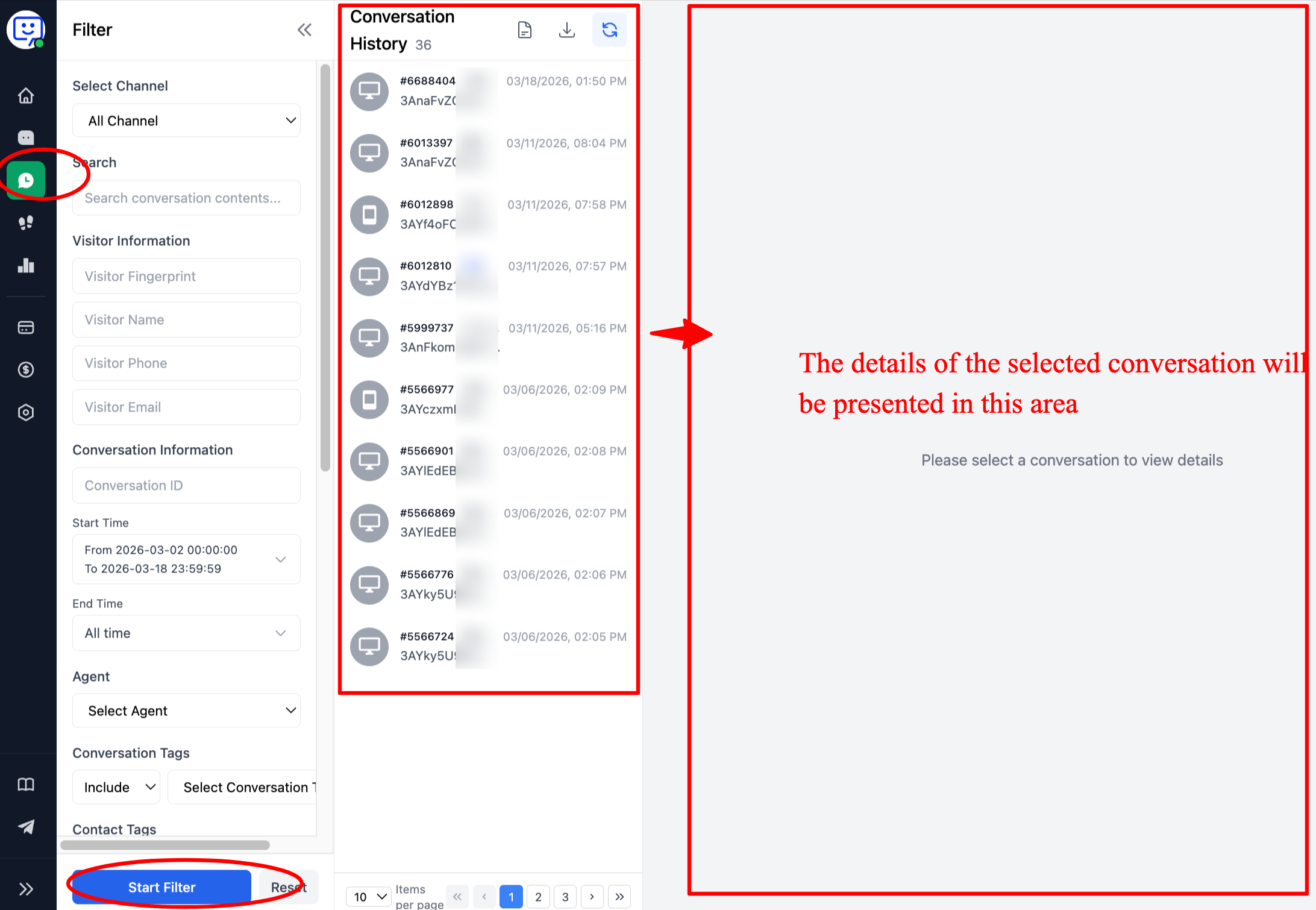
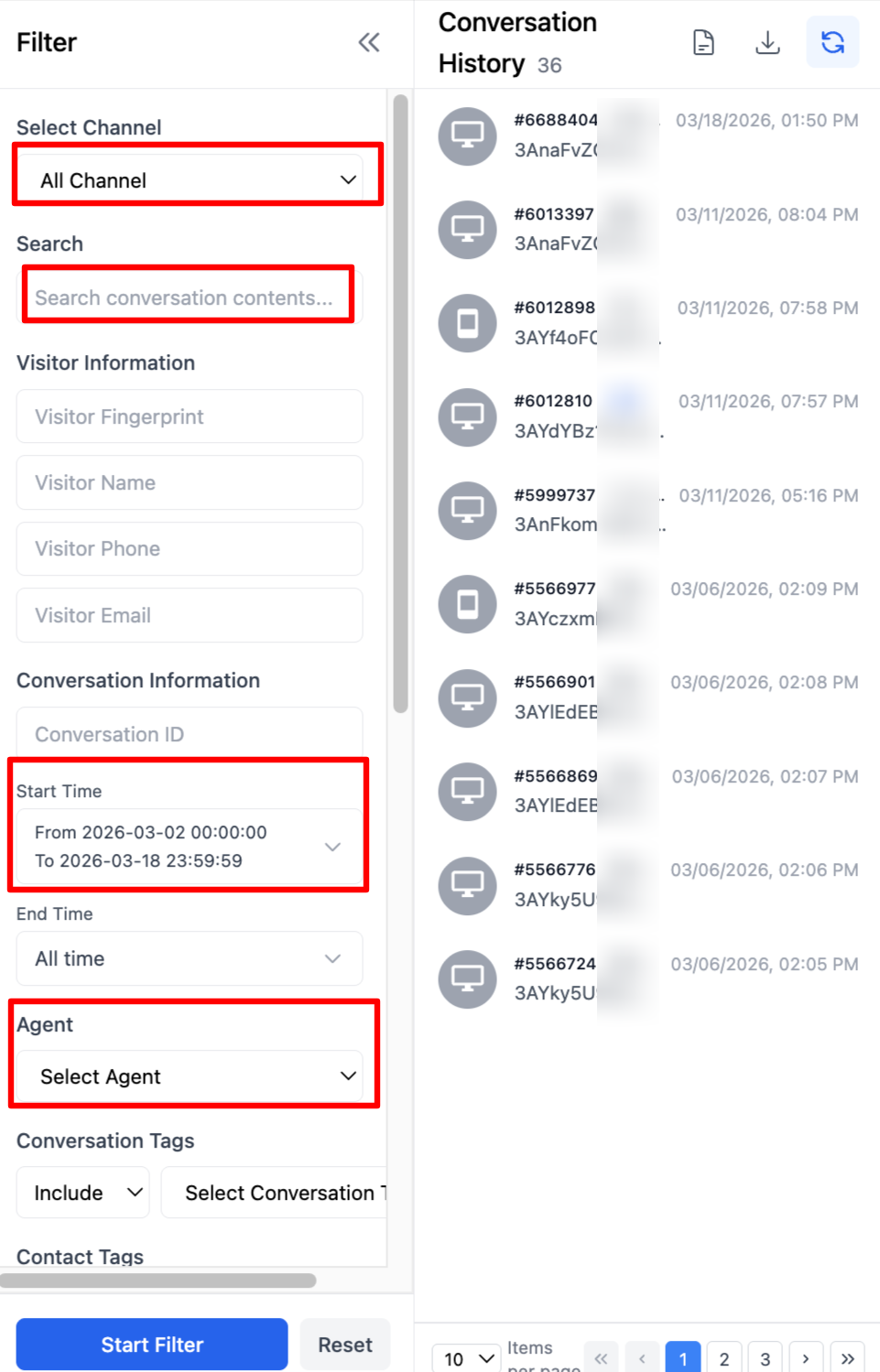
2.From top to bottom, you can filter by channel, conversation content, visitor information, conversation ID, conversation time, assigned agent, user tags, visitor geographic location/IP, and more. Remember to click the "Start Filtering" button after making your selections.
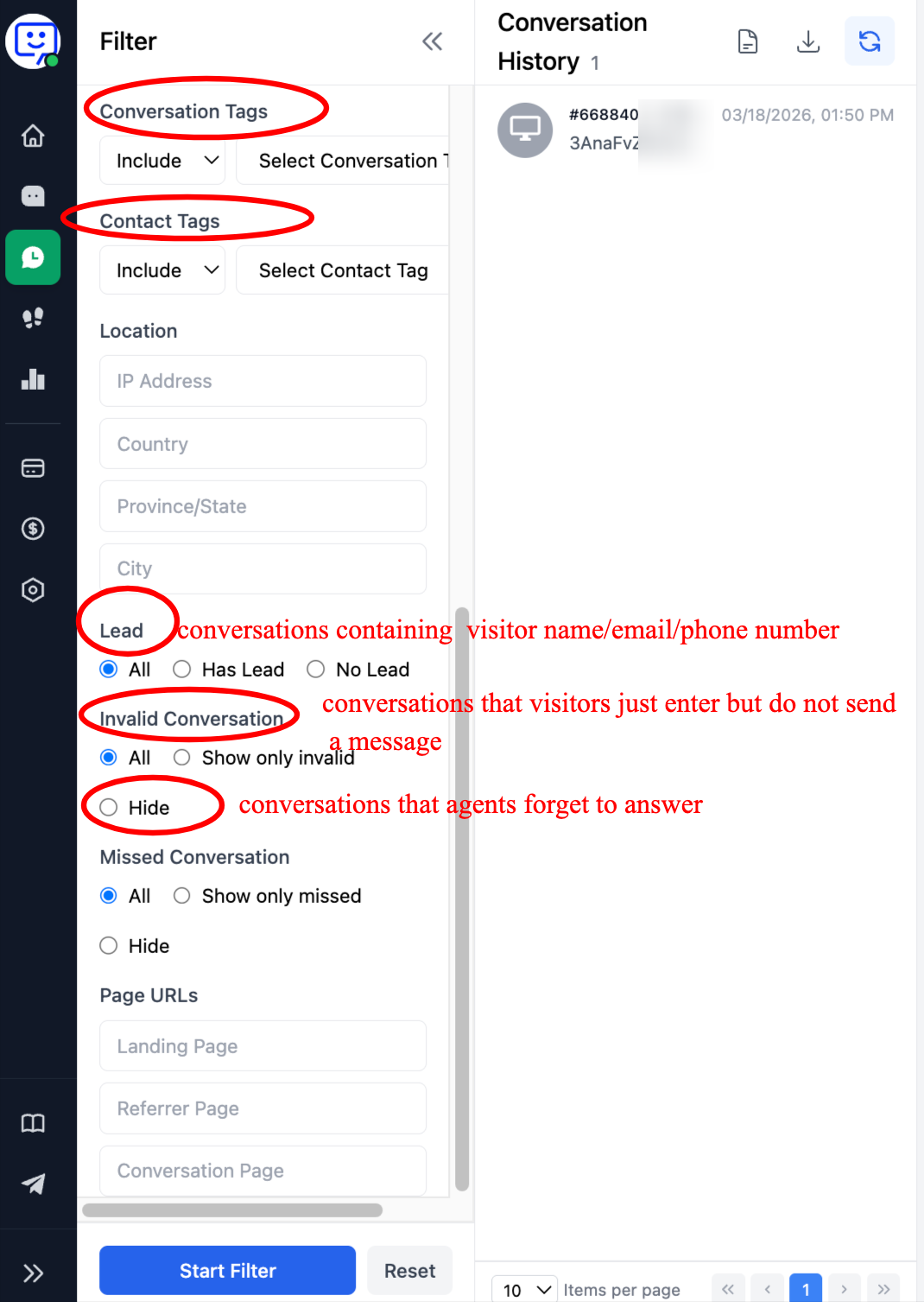
3.You can also filter by conversation tags, visitor IP address, leads, invalid and missed conversations, and page URL.
Historical Conversation Export
Here, you can also export your historical conversations.
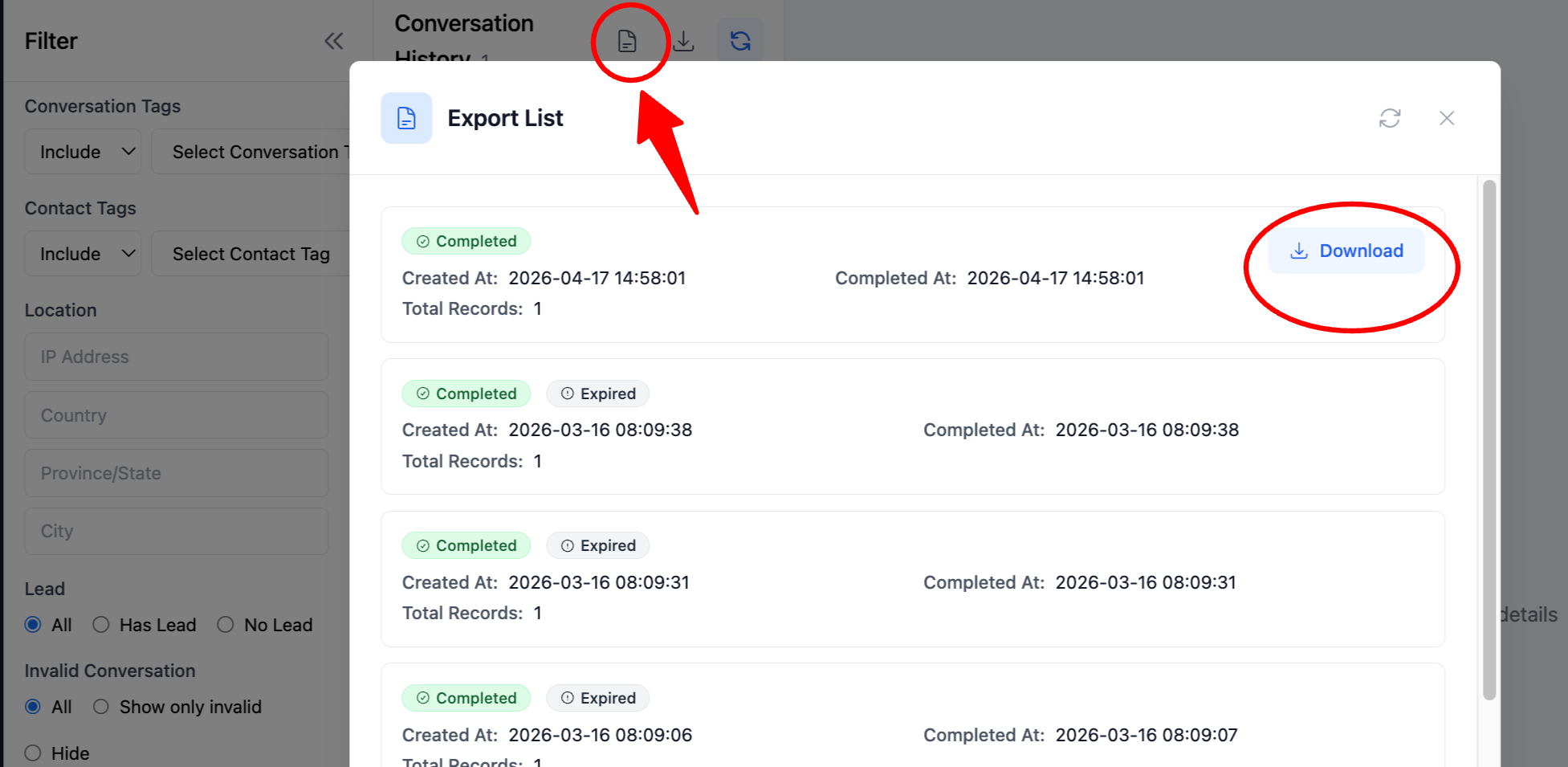
1.First, click the download button in the upper right corner of the "History" module, then click "Confirm Export" in the popup.
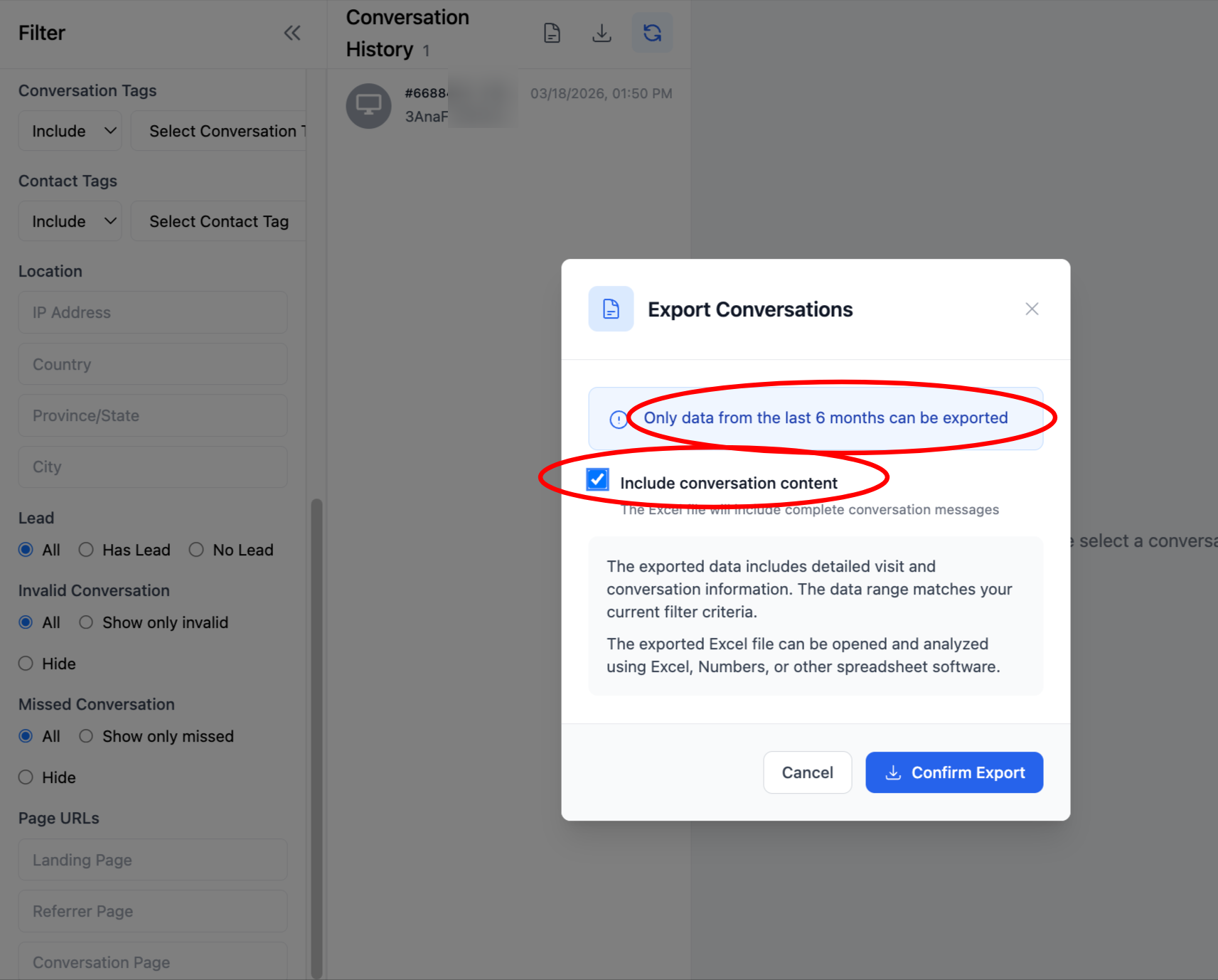
2.Then click "Download List" in the upper right corner of the "History" module, and finally click "Download" in the popup.
Note:
- The exported file is in Excel format. You can perform further filtering and analysis within the file.
- If there is a large volume of conversation data, the export may take some time. Please do not click export repeatedly.
Congratulations! You have completed the "History" tutorial!
Through history filtering and export, you can save your conversation records locally and perform further data analysis to find ways to improve efficiency and optimize your product.