
Windows Client Installation Tutorial
Installing non-officially registered clients on Windows can be a bit more involved.
Here is a step-by-step installation tutorial.
- After obtaining the download link, open it in your browser.
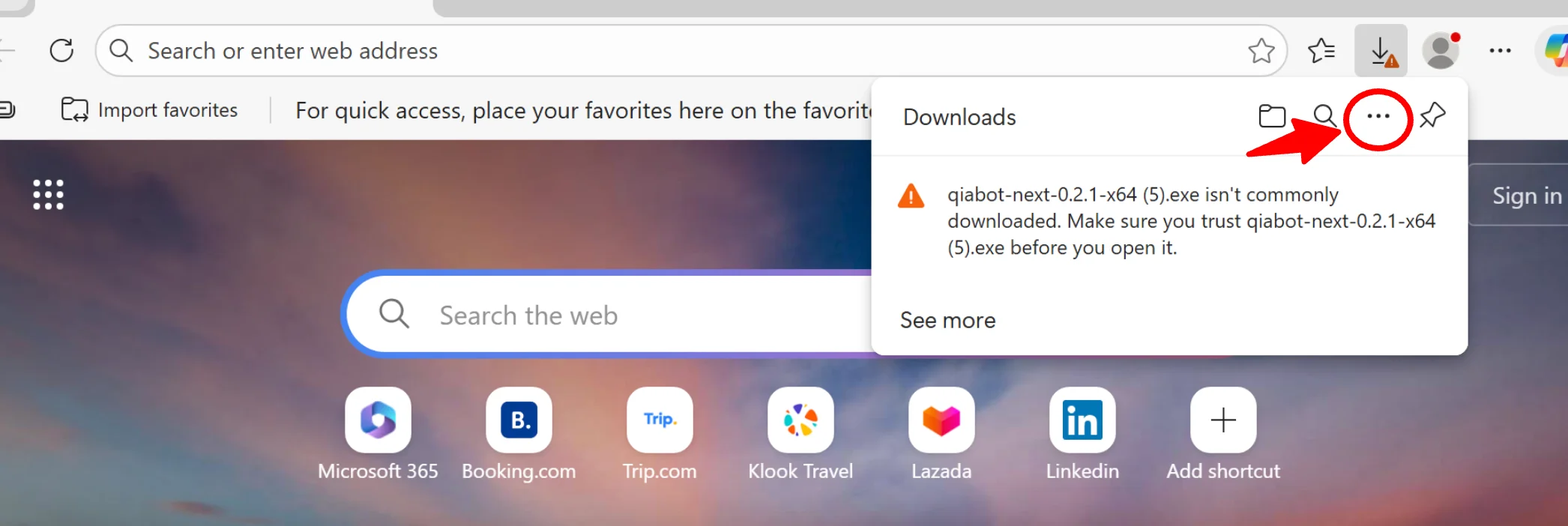
The browser will indicate that Qiabot is not a commonly downloaded file. Simply click the three dots "..." in the upper right corner of the prompt.
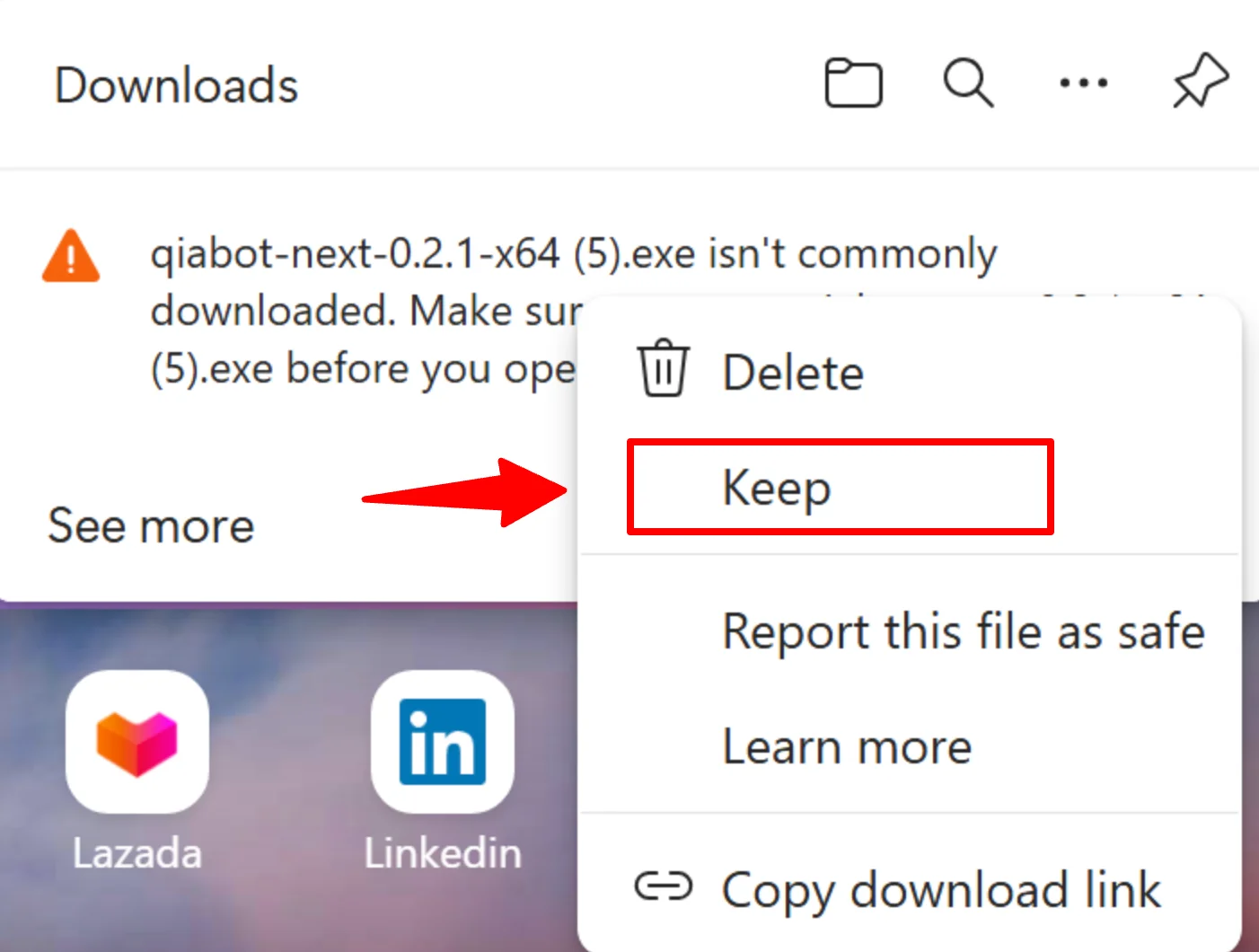
- Select "Save"
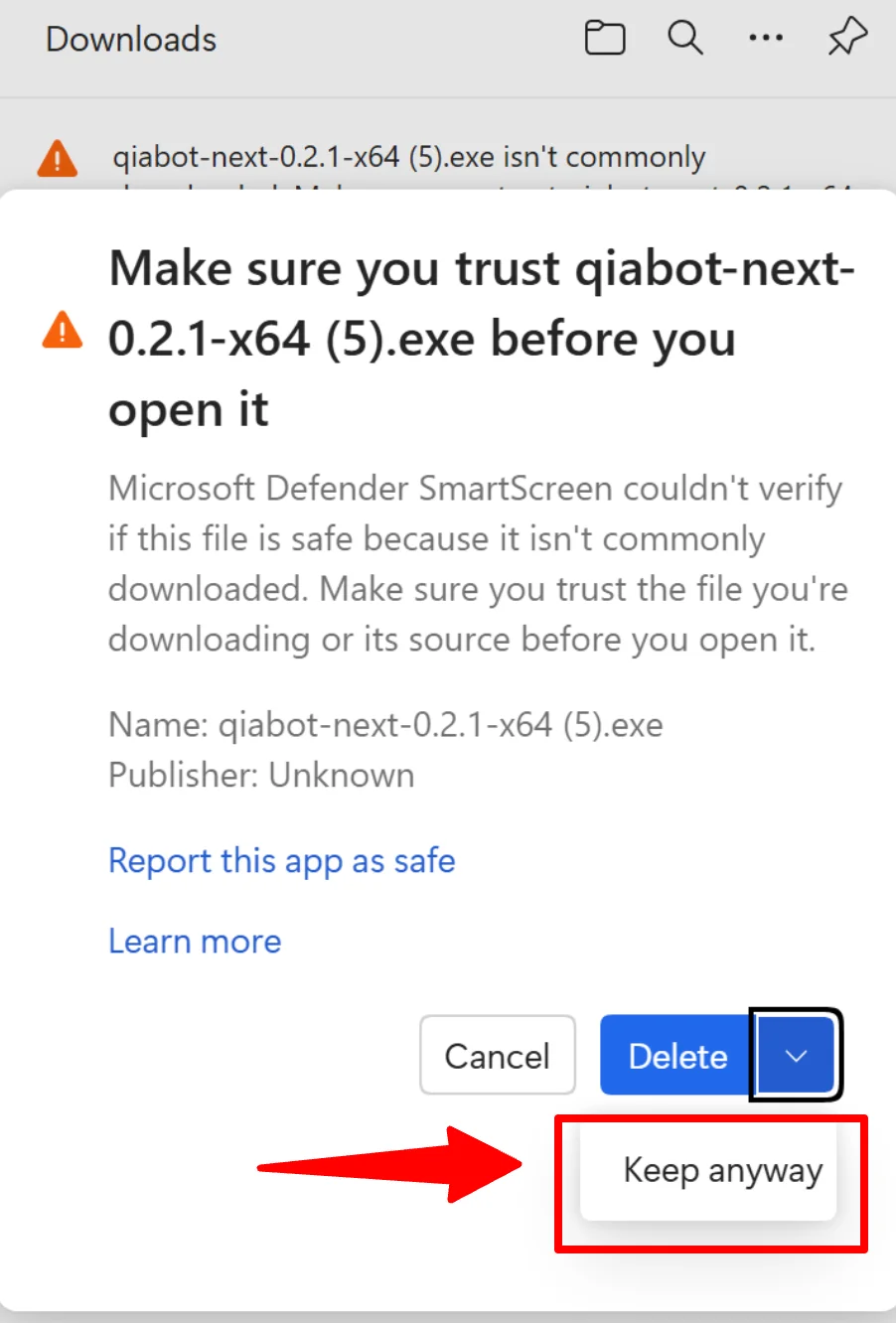
- Windows will display a trust prompt. You need to select "Keep anyway"
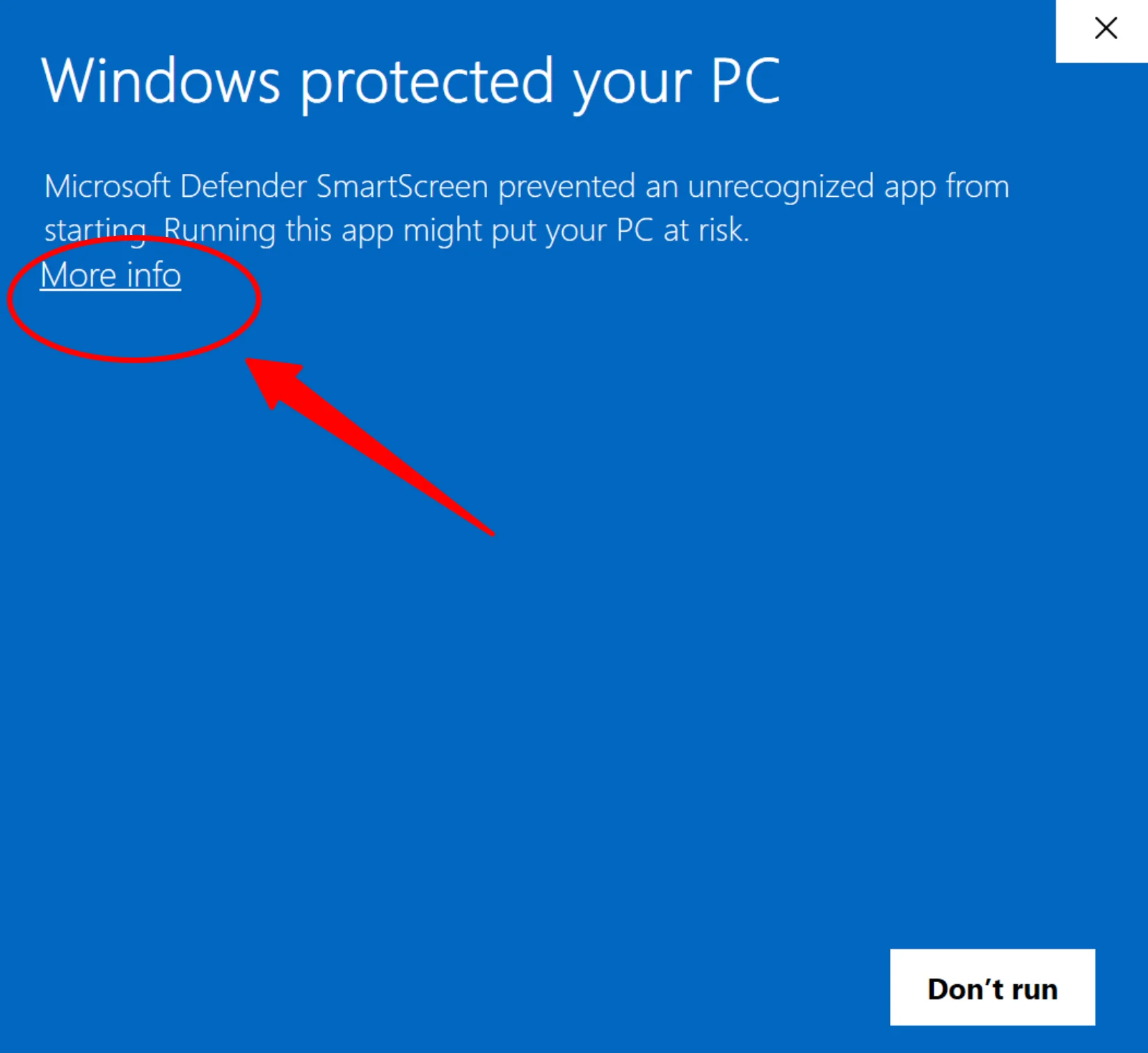
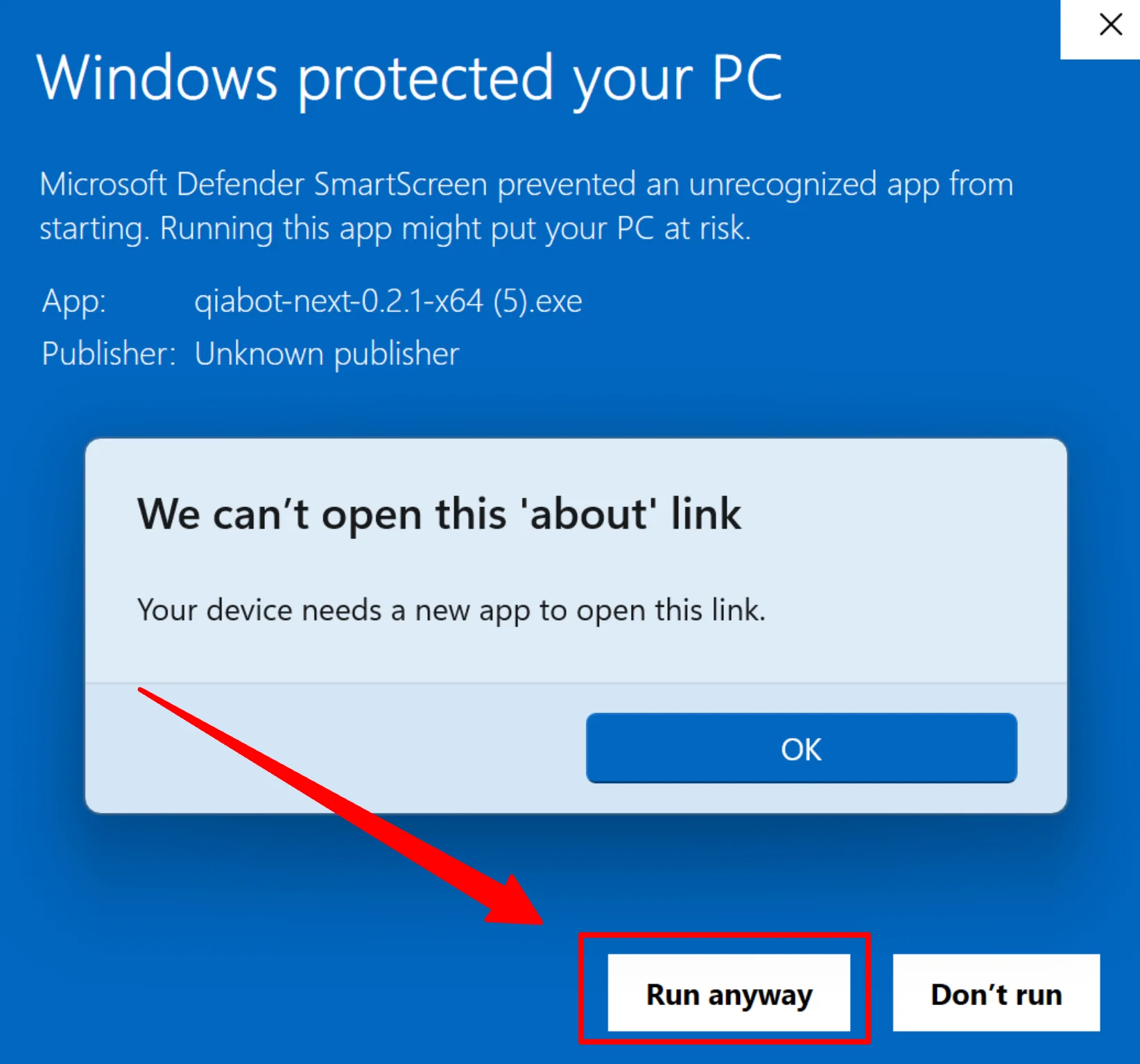
- Sometimes Windows will persistently show a protection prompt. In this case, click "More info"
- Next, Windows may still occasionally show prompts like "Can't open this link". Simply ignore the prompt and click "Run anyway" in the bottom right corner.
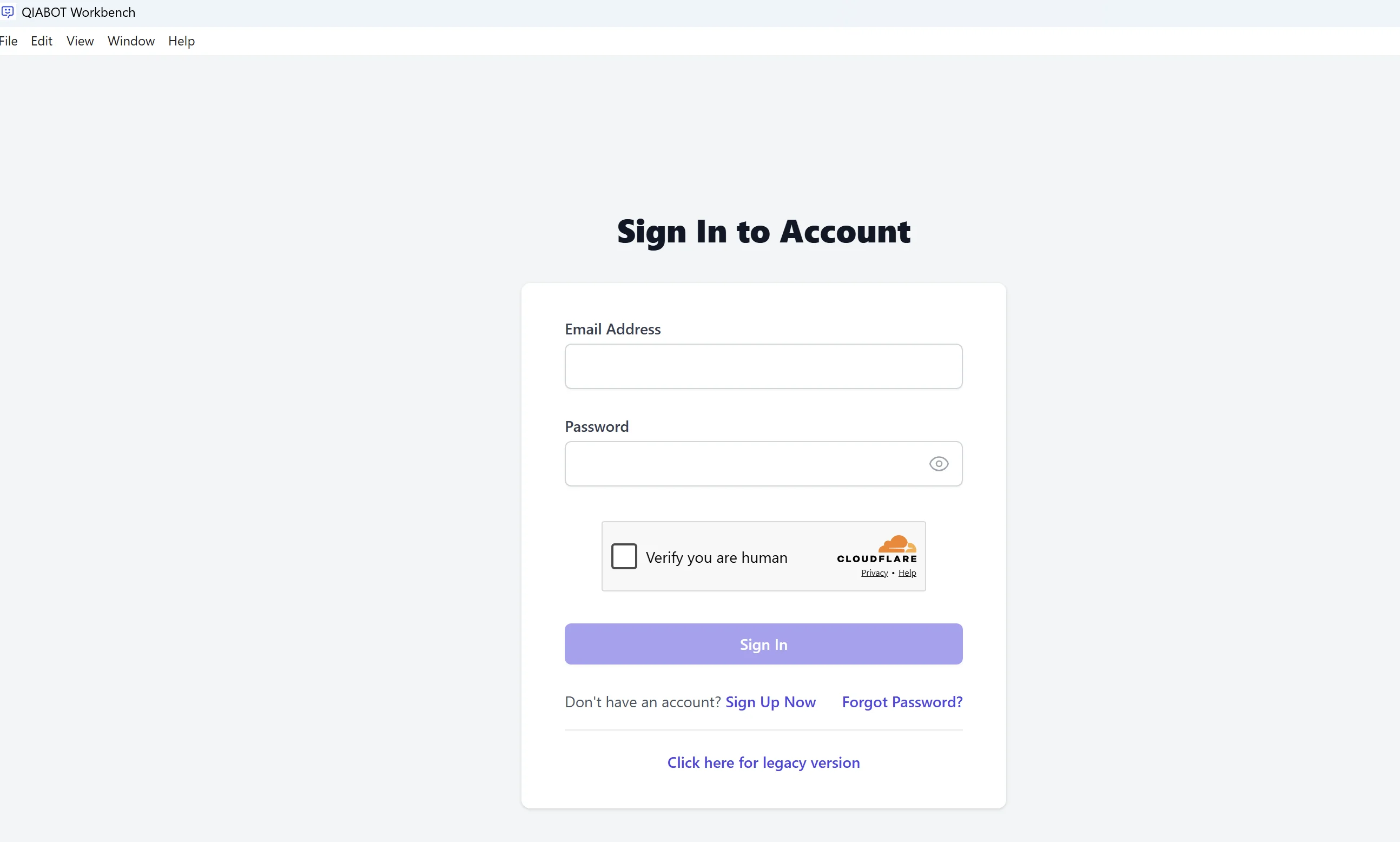
- After that, the Qiabot client is installed. Double-click the client icon to see the login screen.
Warning ⚠️!!!!
Sometimes the client may occasionally fail to open. After uninstalling the old client and reinstalling, clicking the client icon may still fail to launch the client window, showing the following message instead:
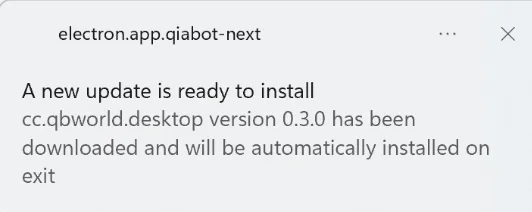
This may be because your regional ISP has blocked your IP, preventing access to our client and website.
In this case, you can try switching networks, such as using a VPN or switching to a mobile hotspot.